Step 1 – Open the HSPay Registration Page
Visit the HSPay website and click Start Free Trail
The HSPay registration page will open, allowing you to create your company account.
Step 2 – Enter Your Company Details
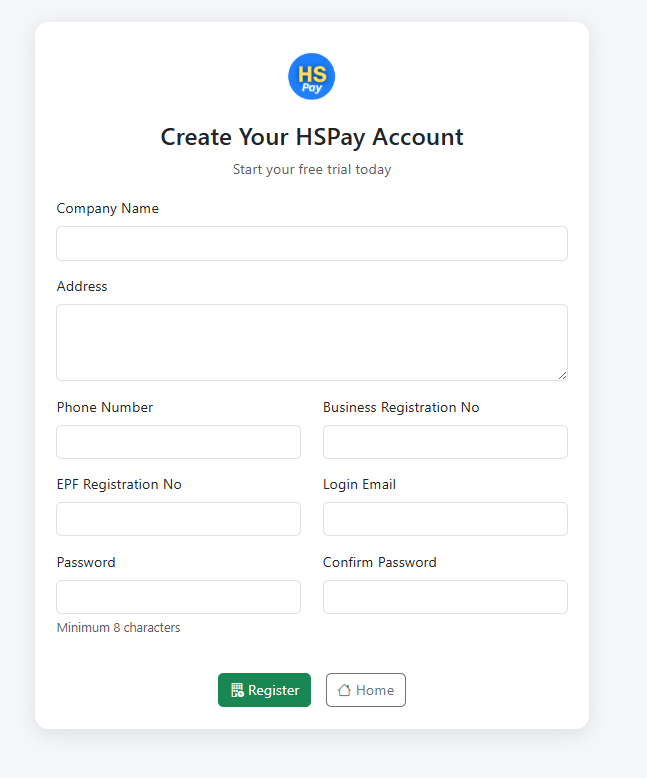
Complete the required information on the HSPay registration form.
Make sure that all information is entered correctly, especially your email address.
The email address you provide is important because HSPay will send a One-Time Password (OTP) to this address to verify your registration.
Screenshot: HSPay registration form.
Before Continuing
Check that your:
- Company information is correct.
- Email address is entered correctly.
- Contact information is accurate.
- Login information is secure.
Once you have confirmed the information, submit the registration form.
Step 3 – Check Your Email for the HSPay OTP
After submitting the registration form, HSPay will send a One-Time Password (OTP) to the email address you provided.
Open your email inbox and look for the HSPay verification email.
If you cannot find the email in your inbox, check your Spam or Junk folder.
Important: Your HSPay OTP is valid for 10 minutes only.
You must enter and verify the OTP before the 10-minute validity period expires.
Step 4 – Enter the OTP
Return to the HSPay OTP verification page.
Enter the OTP that was sent to your registered email address.
Carefully check the code before continuing.
Step 5 – Verify Your Email Address
After entering the OTP, select the Verify button.
If the OTP is correct and has not expired, HSPay will successfully verify your email address.
Email verification helps confirm that the email address registered with the HSPay payroll system belongs to you and can receive important account communications.
Step 6 – Complete Your HSPay Registration
Once your email address has been successfully verified, complete the remaining registration process.
Your HSPay account will then be ready for the next stage of configuration
Step 7 – Log In to HSPay
After completing your registration, go to the HSPay login page.
Enter your registered login credentials and select Login.
You can then access your HSPay account and begin configuring your organization.
Screenshot: HSPay Cloud Payroll login page.
What Should You Do After Registering for HSPay?
Registration is only the first step in preparing your payroll system.
Before processing employee salaries, you should complete the required company and payroll configuration.
A typical HSPay setup process is:
Company Setup → Organization Structure → Employee Registration → Attendance Setup → Payroll Settings → Payroll Processing
Completing these settings correctly helps ensure that employee attendance and payroll calculations are processed according to your organization's requirements.
Screenshots
Follow the screenshots below together with the instructions in this article.